Exporting and Importing Agents
Overview
Kognitos supports the ability to export automation agents from one environment and import them into another. This allows you to move published automation content across agents in a controlled way.
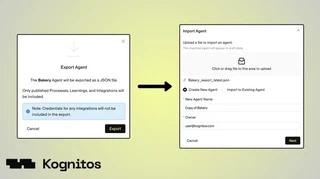
Exporting an Agent
Exporting lets you download a snapshot of an agent’s published state. The export includes only published processes, learnings, and books — draft processes, playgrounds, and configuration credentials are not exported. Anyone with access to the agent can export it.
How to Export an Agent
1. Navigate to Agents
Open the agent menu and select View All.
2. Select an Agent
Check the box next to the agent you want to export.
3. Start Export
Click on Actions, then select Export from the dropdown.
4. Confirm Export
In the confirmation popup, click on Export again. This will download a .json file containing the agent’s current state, which can be later imported into a new or existing agent.
Importing an Agent
You can import an agent using a .json file generated from the export process. There are two ways to do this — into a new agent or into an existing agent. All imported items are added as drafts. The agent’s published content is not affected unless you review and publish the imported content.
Import into a New Agent: Use this option to create a new agent.
Import into an Existing Agent: This option allows you to update an existing agent and is available only to agent admins.
How to Import an Agent
1. Navigate to Agents
Open the agent menu and select View All.
2. Start Import
Click on Import to start the import.
3. Add Import Details
- Upload a .json file of an exported agent.
- Choose one of the following options:
- Select Create New Agent and provide a name for the new agent.
- Select Import to Existing Agent and select an existing agent from the dropdown menu. Note: This option is only available to agent admins.
- Click Next to continue.
4. Review and Confirm
Review the summary of the import and click Import to finish importing.
